How to print Etsy packing slips on a 4x6 thermal label printer
Short answer: Etsy's packing slips are laid out for regular printer paper, so they come out tiny or cut off on a 4x6 label. To print a proper 4x6 packing slip, install the SlipCraft 4x6 Chrome extension, open the order in Etsy, click SlipCraft, press Create 4×6 slip, then print with Paper size 4 x 6 in, Margins None and Scale Default.
What you need
- A thermal label printer that prints 4x6 labels, such as a Munbyn, Rollo, Zebra or similar model, installed on your computer
- 4 x 6 inch (100 x 150 mm) direct thermal labels, the same kind you use for shipping labels
- Google Chrome on Windows, Mac, Linux or a Chromebook
- The free SlipCraft 4x6 extension (10 free slips, then $1.99 once)
Step-by-step
- Install SlipCraft and pin it. Add SlipCraft to Chrome, then click the puzzle-piece icon in Chrome's toolbar and click the pin next to SlipCraft so its icon is always visible.
- Load 4x6 labels in your printer. Load 4 x 6 inch (100 x 150 mm) direct thermal labels and make sure your printer's own driver or app is set to the same 4x6 label size. Most printers have a calibration or auto-detect step after you load a new roll or stack.
- Tell SlipCraft your printer's resolution. Click SlipCraft, open Printer & text size and choose 203 dpi (most 4x6 label printers) or 300 dpi (high-resolution models). You'll find it in your printer's specs. Not sure? Choose 203 dpi.
- Open the order on Etsy. In Etsy Shop Manager, go to Orders & Shipping and click the order. For several orders at once, select them and open Etsy's packing slip print page instead.
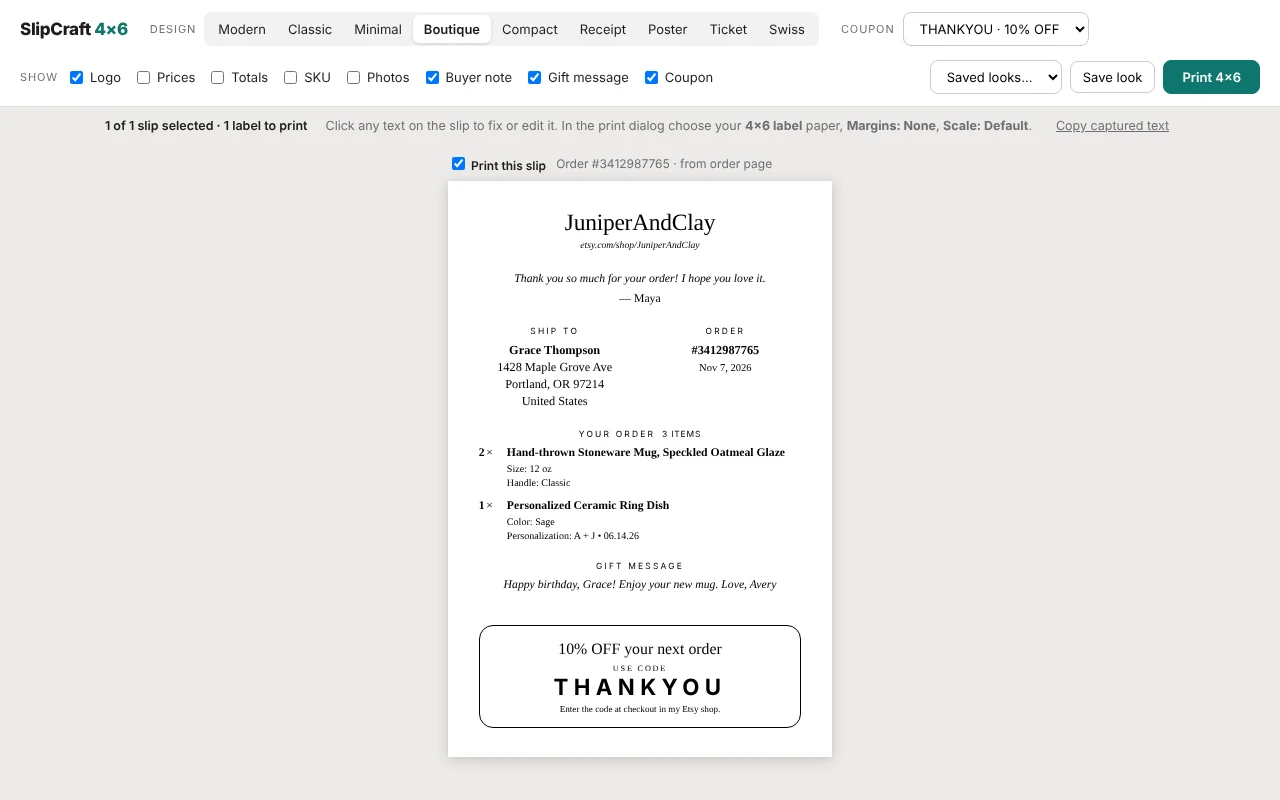
- Create the slip. Click the SlipCraft icon. It shows the order it found. Press Create 4×6 slip and your slip opens in a new tab.
- Check and personalize it. Pick a design, choose your coupon and thank-you note, and click any text on the slip to fix it.
- Print with the right Chrome settings. Press Print 4×6. In Chrome's print window choose your label printer as the Destination, Paper size 4 x 6 in (100 x 150 mm), Margins None and Scale Default. Chrome remembers these for next time.
Chrome print settings for 4x6 labels
| Destination | Your label printer |
|---|---|
| Paper size | 4 x 6 in (100 x 150 mm). Look under More settings if you don't see it. |
| Margins | None |
| Scale | Default |
| Headers and footers | Off |
Troubleshooting
The slip prints tiny or in a corner
Paper size is probably set to Letter or A4. In Chrome's print window, open More settings and set Paper size to 4 x 6 in (100 x 150 mm). Keep Scale at Default.
The edges are cut off
Set Margins to None. If it still happens, check that your printer's own driver settings use the 4x6 label size too, and run your printer's label calibration.
A blank label comes out between slips
Your printer's label size or gap setting doesn't match the labels you loaded. Recalibrate the printer (most have a button or a setting in their app) and make sure the driver's label size is 4 x 6 in.
The logo or photos look grey or speckled
In SlipCraft, open Printer & text size and pick the dpi that matches your printer. SlipCraft converts pictures to pure black and white for that resolution.
The order is too long for one label
That's expected: long orders shrink a little to fit, then continue onto a second label (Label 1 of 2). You can also try the Compact design or a smaller text size.
Something is missing from the slip
Click the text on the slip to add or fix it before printing. If SlipCraft keeps missing a detail, use Copy captured text on the slip page, remove the buyer's name and address, and send the rest to support through the Chrome Web Store listing.